Test Sheet List & Test Case List
The list view shows all test sheets and test cases in a space, together with their testing progress. Use it to find a test sheet, check how far testing has progressed, and copy a sheet for re-testing.
Opening the list
Section titled “Opening the list”There are two ways to open the list view:
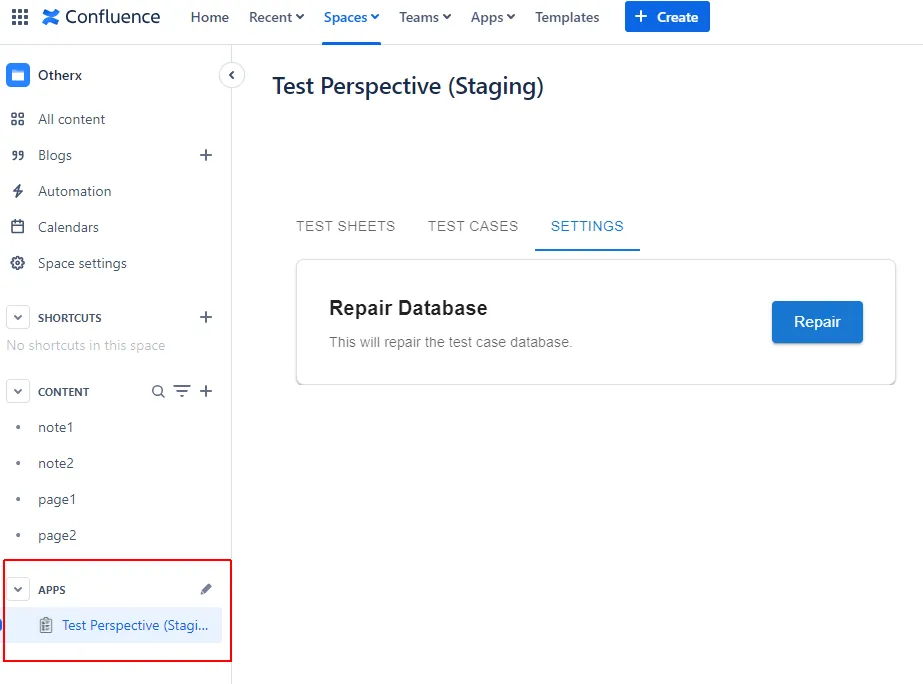
- From the space menu: In the Confluence space sidebar, open Apps → Test Perspective. All tabs (Test Sheets, Test Cases, and Settings) and the Parent Page filter are available.
- From the Summary of Test Runs Macro: Place the Summary of Test Runs Macro on a page. It shows the Test Sheets and Test Cases tabs, automatically scoped to the macros found on that page’s child pages. The Settings tab and the Parent Page filter are not shown inside the macro.
Test Sheets tab
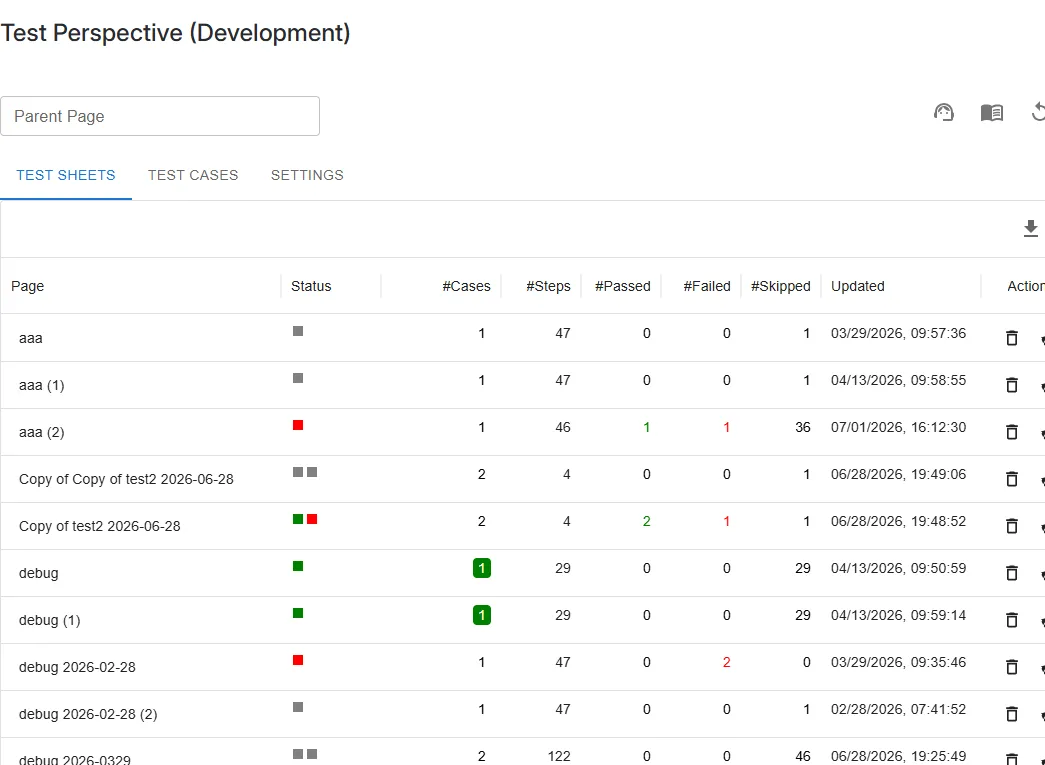
Section titled “Test Sheets tab”The Test Sheets tab lists test sheets (Confluence pages that contain one or more test macros).
| Column | Description |
|---|---|
| Page | Confluence page title. To rename the page, double-click the cell. |
| Status | One colored box per test case on the page. Click a box to open that test macro in a dialog. See Status colors below. |
| #Cases | The number of test cases on the page. Shown in a green box with white text when every test case on the page is complete. |
| #Steps | The total number of test steps |
| #Passed | The total number of passed steps |
| #Failed | The total number of failed steps |
| #Skipped | The total number of skipped steps |
| Updated | Last updated date and time |
| Actions | Delete a page (trash icon) and Copy a page as test sheet (recycle icon). Deleting asks for confirmation in a Confirm Page Deletion dialog. For copying, see How to re-test. |
Status colors
Section titled “Status colors”Each colored box in the Status column represents one test case:
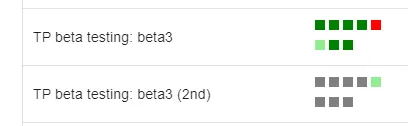
- Green (Complete): every step is Pass or Skip, and there is no Fail.
- Light green (Partially complete): at least one Pass and no Fail, but testing is not finished yet.
- Red (Has errors): at least one Fail.
- Gray (Not started): no results have been recorded yet.
Test Cases tab
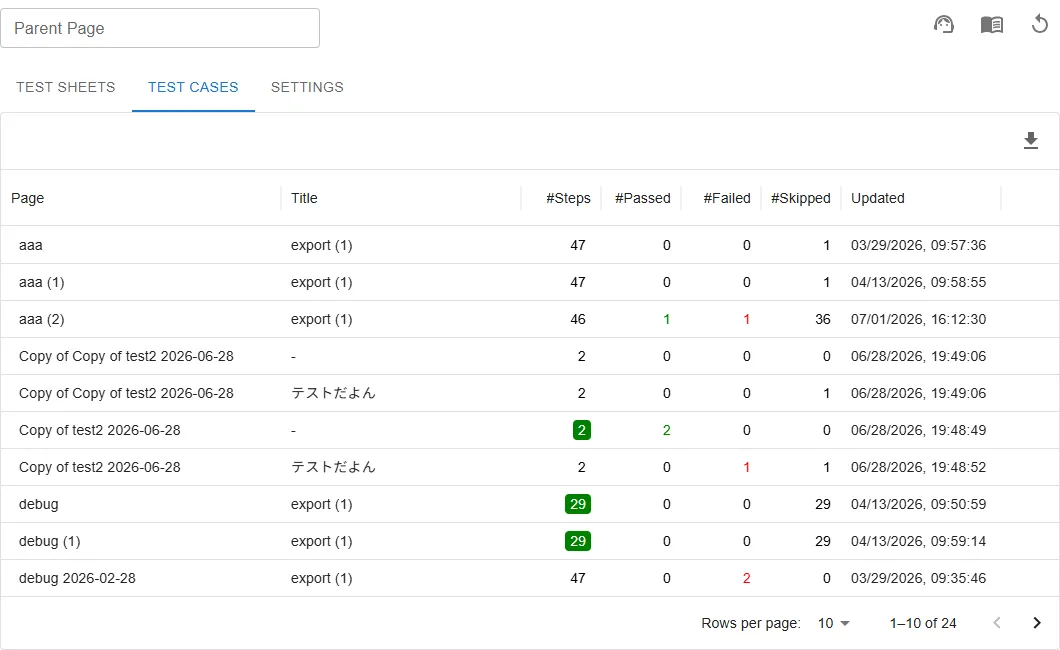
Section titled “Test Cases tab”The Test Cases tab lists individual test macros.
| Column | Description |
|---|---|
| Page | The Confluence page that contains the test macro. To rename the page, double-click the cell. |
| Title | The title of the test macro. Click the title to open the macro in a dialog. |
| #Steps | The total number of test steps. Shown in a green box with white text when every step is Pass or Skip. |
| #Passed | The total number of passed steps |
| #Failed | The total number of failed steps |
| #Skipped | The total number of skipped steps |
| Updated | Last updated date and time |
Parent Page filter
Section titled “Parent Page filter”When the list is opened from the space menu, you can narrow it down with the Parent Page field:
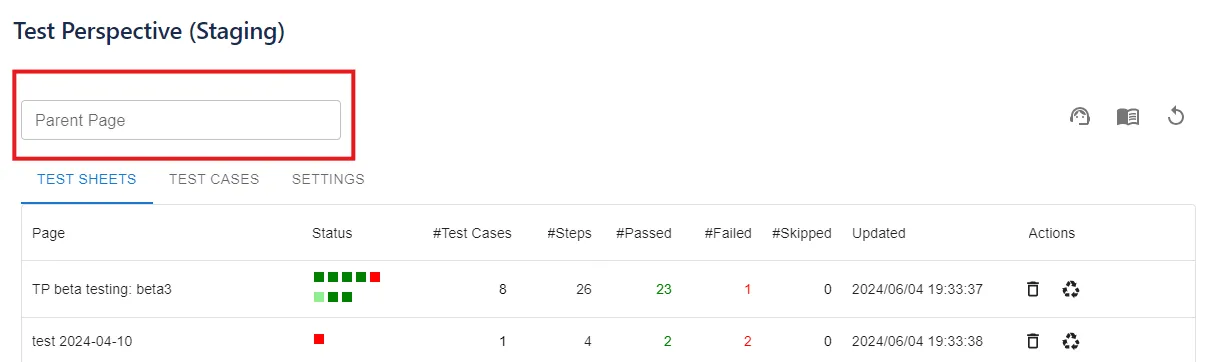
- It limits the list to Test Sheets located under the selected parent page.
- If nothing is specified, all Test Sheets within the space are displayed.
For example, if you organize Test Sheets under a page per release or per team, select that page to see only its Test Sheets.
Summary of Test Runs Macro
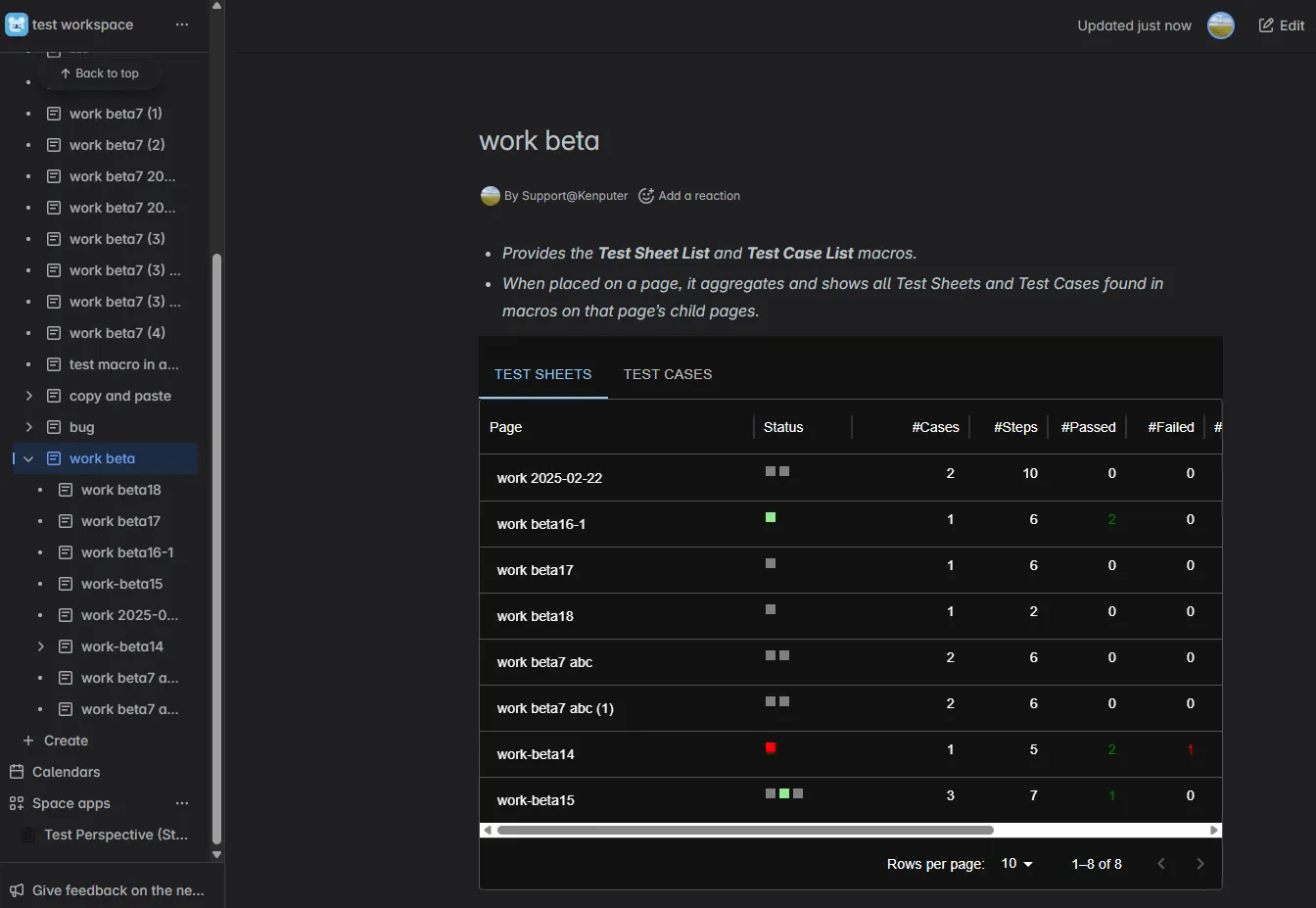
Section titled “Summary of Test Runs Macro”The Summary of Test Runs Macro embeds the same Test Sheets and Test Cases lists in a Confluence page.
- When placed on a page, it aggregates and shows all Test Sheets and Test Cases found in macros on that page’s child pages.
- Use it as a dashboard, for example on a release plan page whose child pages are the test sheets for that release.
Exporting the list
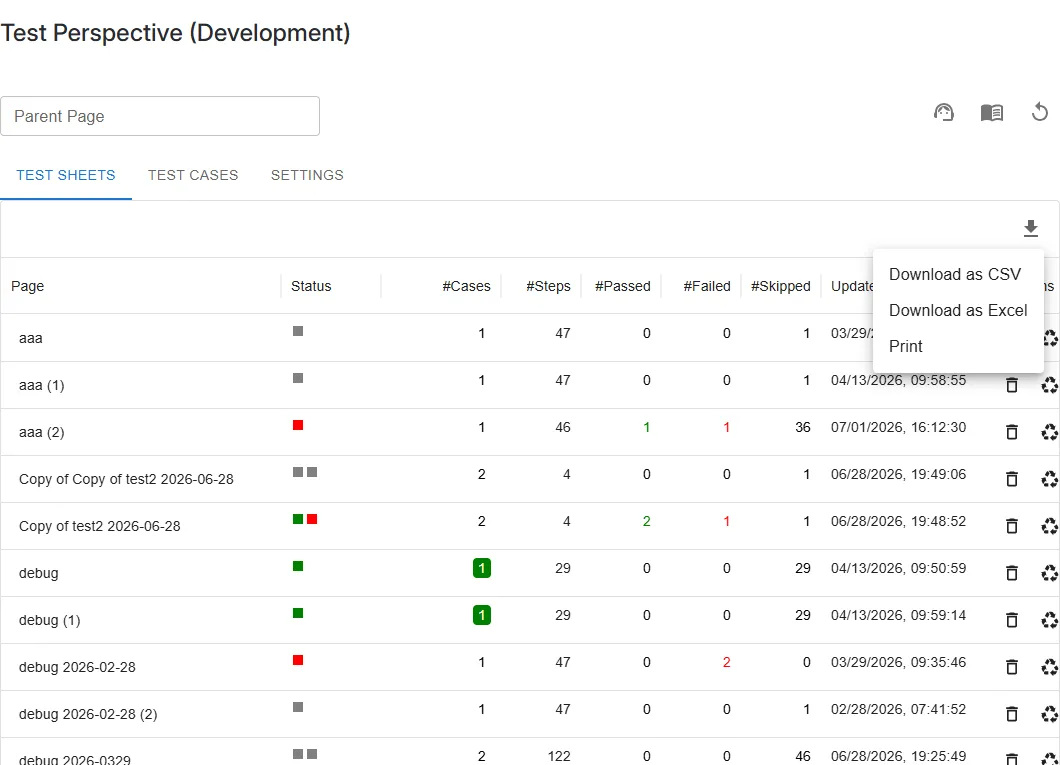
Section titled “Exporting the list”Both the Test Sheets and Test Cases lists can be exported. Click the Export (download) icon above the list, then choose a format:
- Download as CSV: Download the list as a CSV file (UTF-8).
- Download as Excel: Download the list as an Excel file.
- Print: Open the print dialog to print the list or save it as PDF.
Settings: Repair Database
Section titled “Settings: Repair Database”The Settings tab (available only when the list is opened from the space menu) provides a Repair Database action.
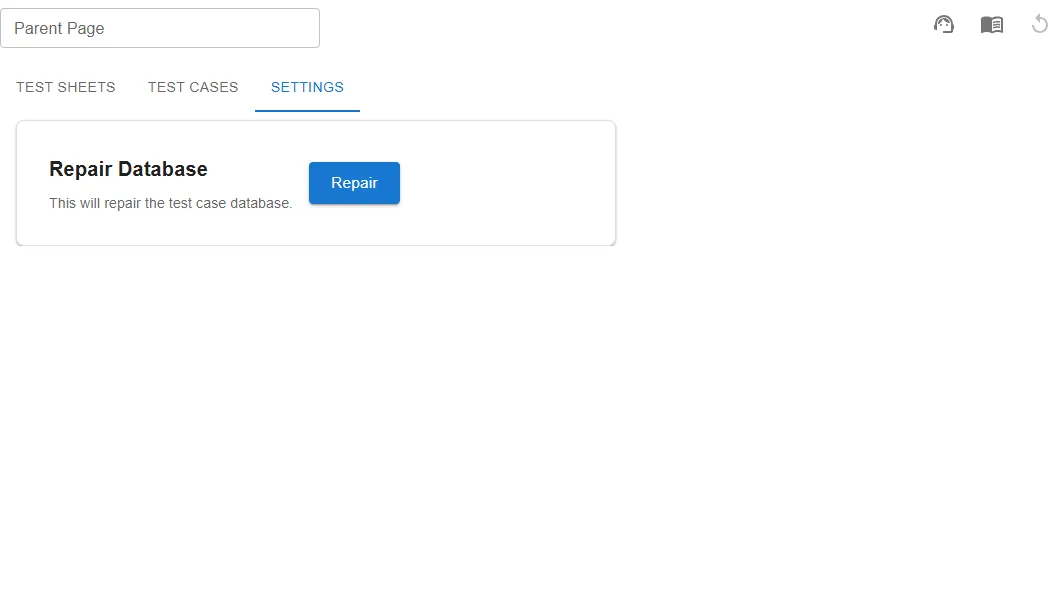
The list is built from a summary database that is updated whenever a test macro is edited. In rare cases (for example, after bulk operations or when data becomes inconsistent), the list may not match the actual test macros on the pages. Running Repair Database rebuilds the summary from the current macros in the space:
- Entries whose test macros no longer exist are removed.
- Counts and titles are recalculated from the current pages.
While the repair is running, progress is displayed and other tabs are temporarily unavailable. The list is reloaded automatically when the repair finishes.
-
Deleting a page from the Test Sheets tab, or moving a page to the Confluence trash, removes it from the list automatically. If the list still shows entries that no longer exist, run Repair Database in the Settings tab.
-
Regarding upgrades from previous versions:
- In the app management screen, an update by the administrator is required.
- Previously created test cases will not appear in the list unless some action is taken on the macro.