Attachments and image editing
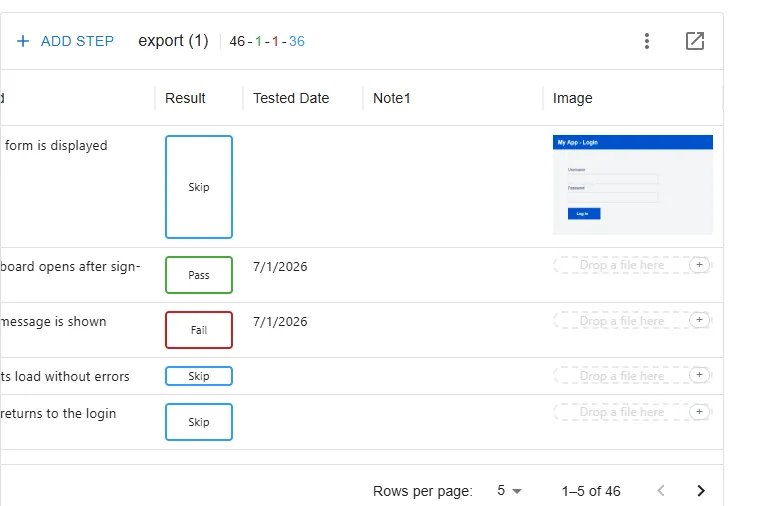
Each test step can hold an image or video in the Image column as evidence for the test result. You can attach files, preview them, edit images with built-in annotation tools, download them, or delete them.
Attaching a file
Section titled “Attaching a file”There are three ways to attach a file to an Image cell:
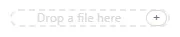
- Drag & drop: Drag an image or video file onto the Image cell (the cell shows Drop a file here).
- File picker: Click the + (Choose file) button in the cell and select a file.
- Paste from clipboard: Copy an image to your clipboard, select the Image cell, and press
Ctrl / Cmd + V.
Both images and videos are supported.
Previewing an attachment
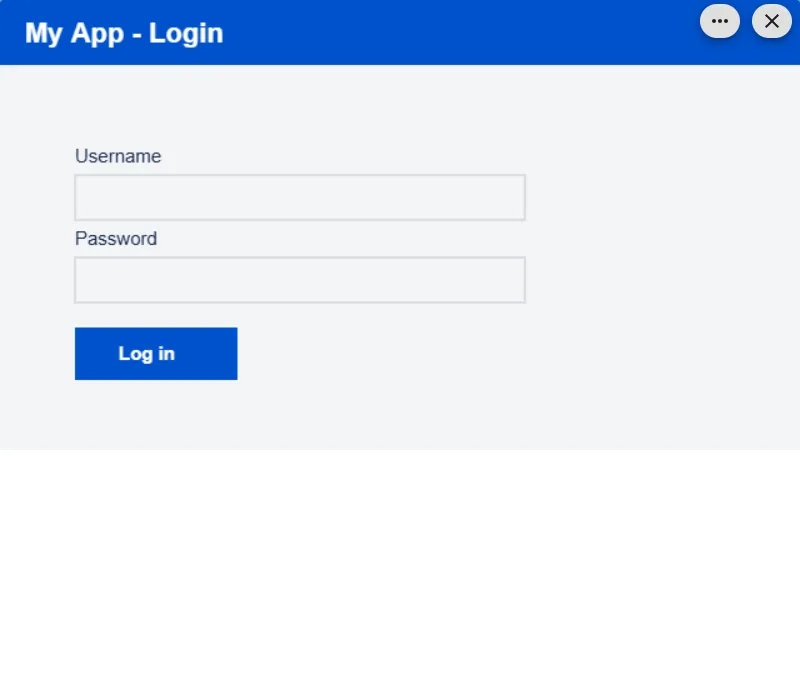
Section titled “Previewing an attachment”Click a thumbnail to open the preview dialog.
- Images are shown at full size.
- Videos can be played back with standard playback controls.
Preview menu (Edit / Download / Trash)
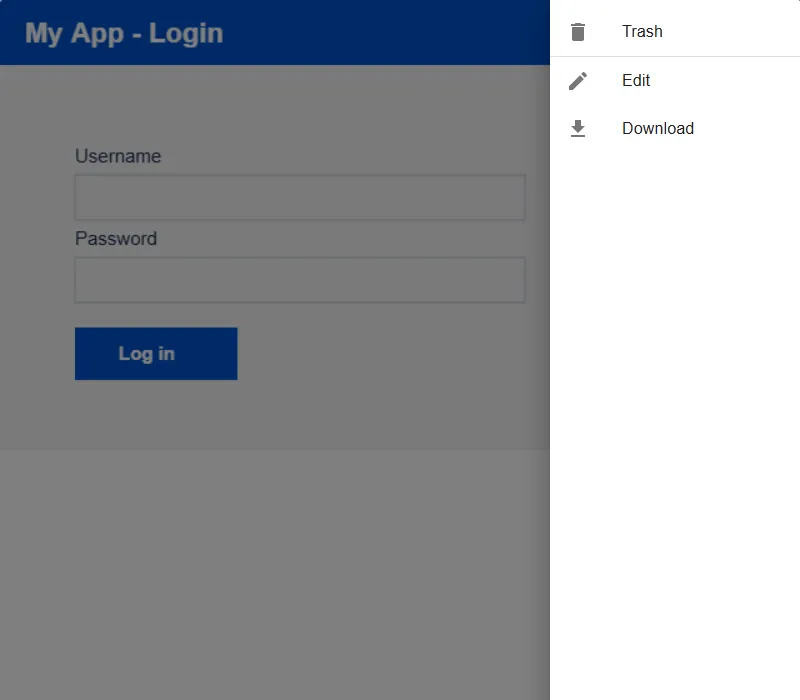
Section titled “Preview menu (Edit / Download / Trash)”Click the … button in the preview dialog to open a side panel with the following actions:
| Menu | Action |
|---|---|
| Trash | Delete the attachment from the step. A confirmation dialog appears; click Agree to delete (or Disagree to cancel). |
| Edit | Open the image editor to annotate the image. Available for images only (not for videos). |
| Download | Download the attachment to your computer. |
Image editor
Section titled “Image editor”The image editor lets you annotate an image before saving it back to the step. The toolbar offers the following tools:
- Select: Select, move, and resize existing objects.
- Text: Add text labels.
- Rect: Draw rectangles to highlight areas.
- Draw: Draw freehand.
You can adjust the color and line width for the drawing tools. Click Save to overwrite the attachment with your annotations, or close the editor to discard your changes.