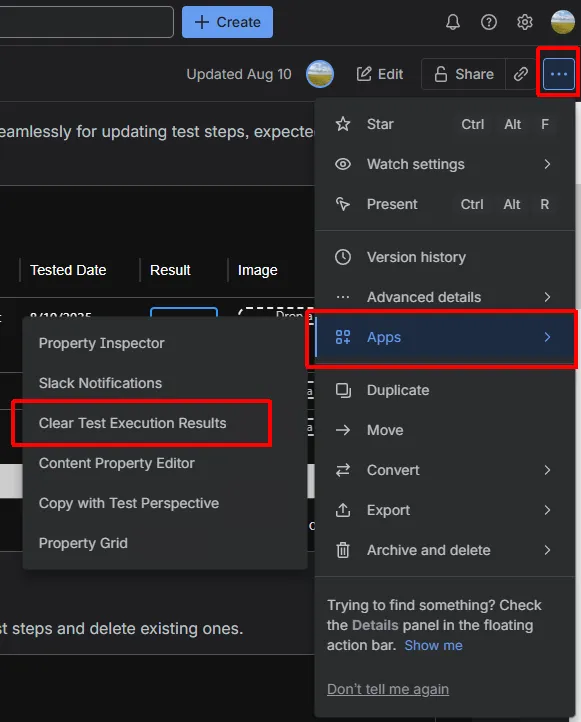
How to re-test
There are three ways to run the same tests again:
- Copy from the Test Sheet List - create a new page with cleared results.
- Copy from the page action menu - same as above, with an extra option.
- Clear results in place - reuse the existing page.
Method 1: Copy from the Test Sheet List
Section titled “Method 1: Copy from the Test Sheet List”-
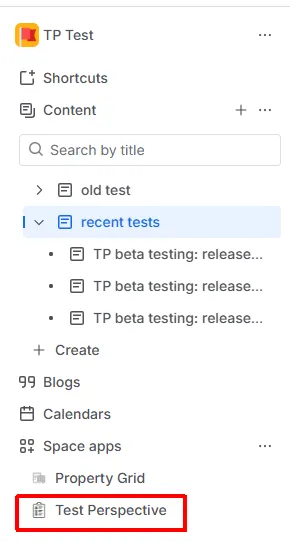
Open the Test Sheet list (in the space sidebar, Apps → Test Perspective).
-
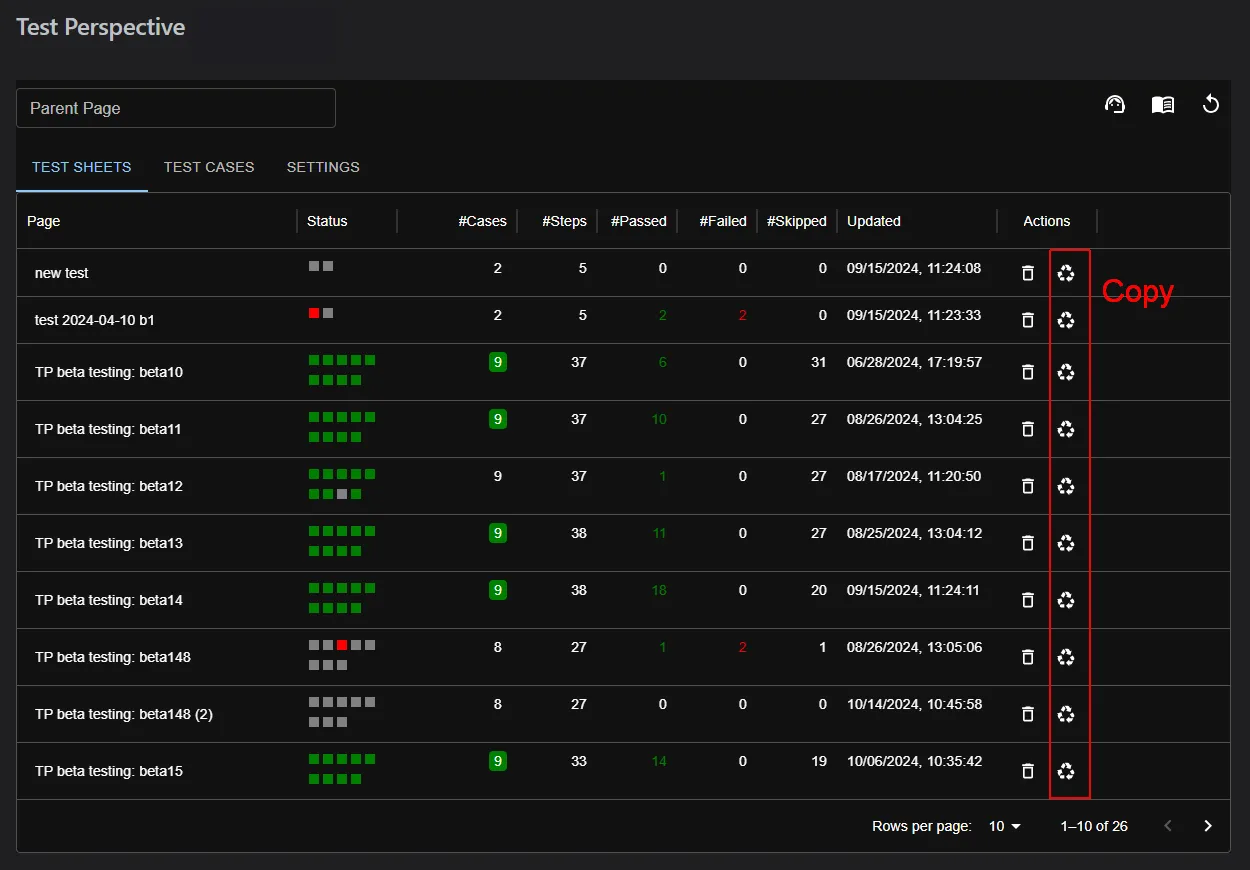
In the Actions column, click the Copy a page as test sheet (recycle) icon for the test sheet you want to copy.
Expected result: A new page is created with all test cases included. The test case definitions (such as Action and Expected) are carried over, and the execution results (temporal columns such as Result, Tested Date, Image, and Note) are cleared.
Method 2: Copy from the page action menu
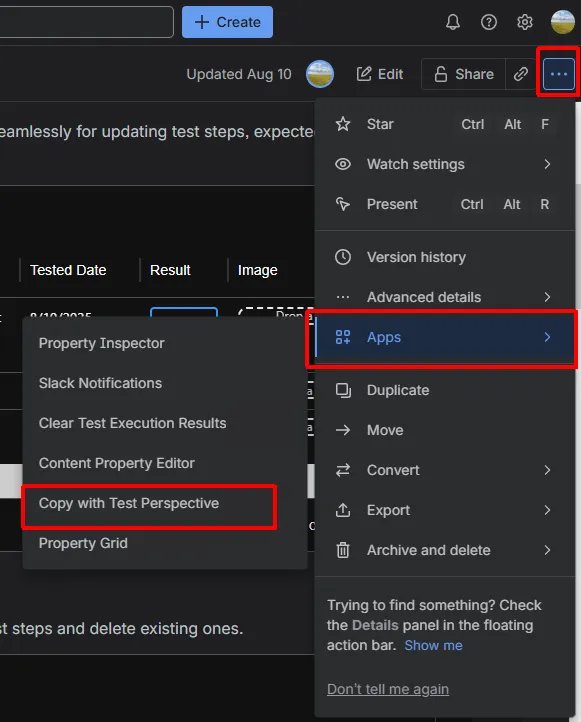
Section titled “Method 2: Copy from the page action menu”- Open the page you want to copy, and click the … (Actions) menu in the top-right corner.
- Select Copy with Test Perspective.
- In the copy dialog, you can optionally enable Convert Pass results to Skip, which carries over passed steps as Skip instead of clearing them.
Expected result: A new page is created with all existing test cases, with results cleared (or converted, if the option is enabled).
Method 3: Clear test execution results in place
Section titled “Method 3: Clear test execution results in place”If previous test history is no longer needed, you can clear the result columns of all test macros on a page and reuse the same page.
- Open the page that contains the test macros.
- From the page’s … (Actions) menu, select Clear Test Execution Results.
Expected result: The temporal columns (such as Result, Tested Date, Image, and Note) of every test macro on the page are cleared.