Column configuration
You can customize the column structure of the test macro for each space, for example to add custom columns for your own management items. The settings apply to all test macros within the space.
Opening the configuration screen
Section titled “Opening the configuration screen”-
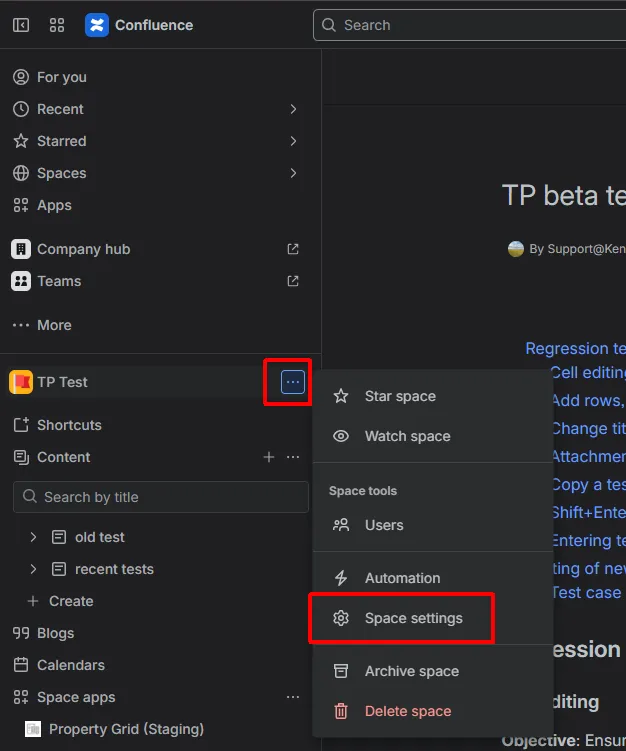
Open Space settings of the target space (from the space sidebar).
-
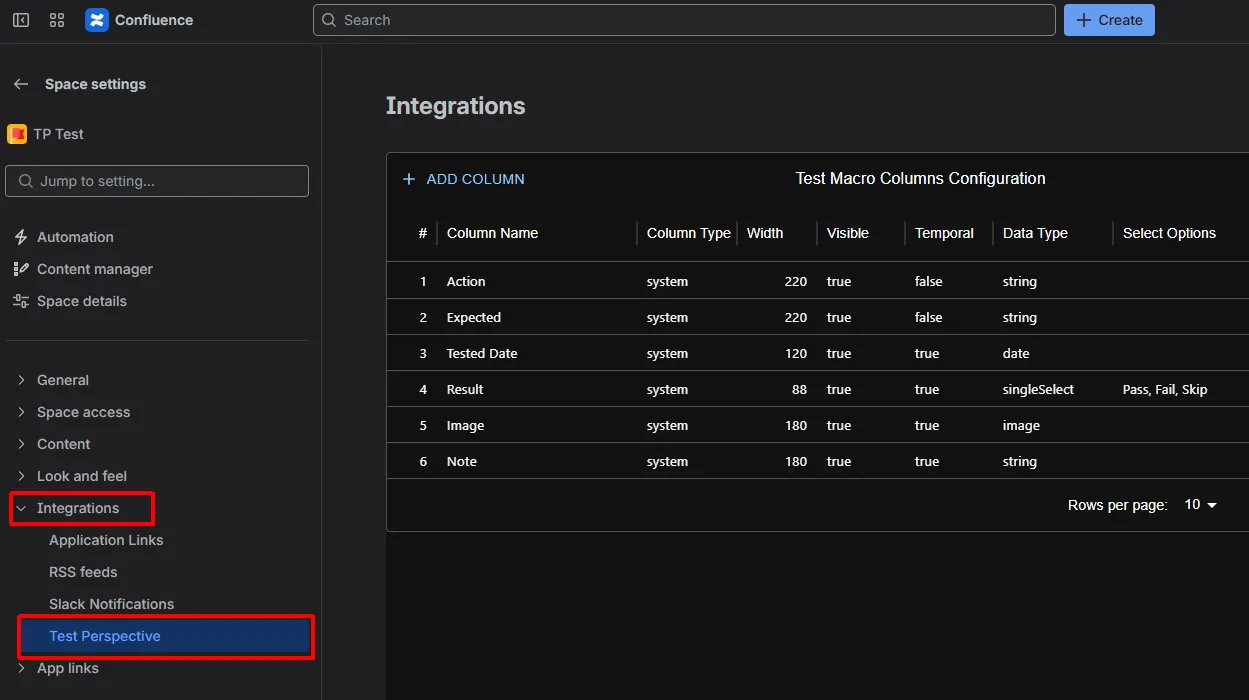
Under Integrations, select Test Perspective.
-
The Test Macro Columns Configuration screen opens, listing all columns with their Visible and Temporal settings.
Defining custom columns
Section titled “Defining custom columns”- Available data types:
string,number,date,singleSelect. - When using
singleSelect, set the options in the “Select Options” field, separated by commas. - The
imagedata type is reserved for the built-in Image column and cannot be selected for a new custom column.
Managing columns
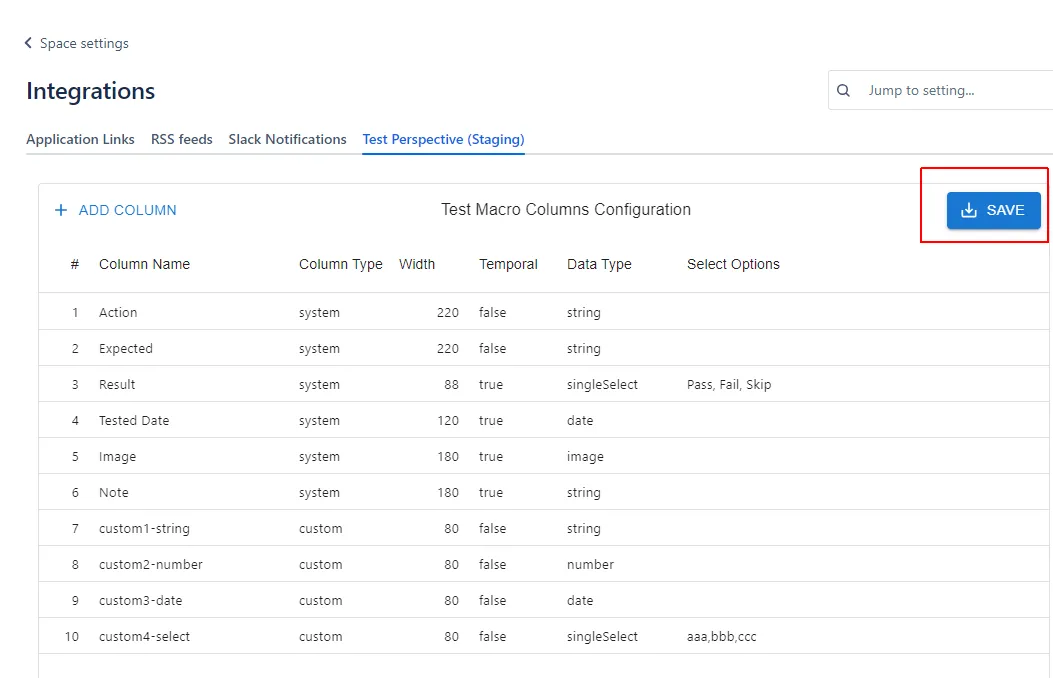
Section titled “Managing columns”- Add: Use the Add Column button to add a custom column at the end.
- Insert: Hover near the left edge between rows to show a blue line and a + button, then click to insert a column at that position.
- Reorder: Drag the handle at the left edge of a row to change the column order.
- Delete: Hover over a custom column row and click the delete button; a confirmation dialog is shown. (System columns cannot be deleted.)
Column properties
Section titled “Column properties”- Visible: Toggle whether the column is shown in the test macro. Hidden columns keep their data but are not displayed.
- Temporal: When set to
true, the column holds execution-related data that is stored per page. Such values are cleared when a test sheet is copied for re-testing. When set tofalse, the value is shared as part of the test case definition. (For example,Tested Date,Result,Image, andNoteare temporal by default.)
Saving settings
Section titled “Saving settings”After completing the configuration, press the Save button to save the settings.
Expected result: The new column structure is applied to all test macros in the space. Reload pages that are already open to see the change.
Constraints
Section titled “Constraints”- For system columns, only the order, column name, column width, visibility, and temporal setting can be changed. The column type and data type are fixed.
- The whole configuration must fit within a size limit of 32,000 bytes (validated when you save). The number of columns you can define therefore depends on the length of column names and select options; if the limit is exceeded, an error message is shown and the settings are not saved.