Getting started
Test Perspective manages manual tests with three simple building blocks:
- Test Sheet = one Confluence page that groups test cases.
- Test Case = one Test Case and Execution Macro (called test macro in this guide) placed on the page.
- Test Step = one row in the macro, describing a single action and its expected result.
See the Glossary for all terms.
Prerequisites
Section titled “Prerequisites”- You can edit the Confluence page. (Inserting the macro requires page edit mode; running tests and recording results work on the published page.)
- The app is not supported on Blog pages.
Create a test case
Section titled “Create a test case”-
In page edit mode, place the Test Case and Execution Macro anywhere on the page.
- Type
/testfor a quick selection.
- Type
-
Press the Add step button in the macro toolbar to add a test step.
-
Enter the test operation in the Action column and the expectation in the Expected column.
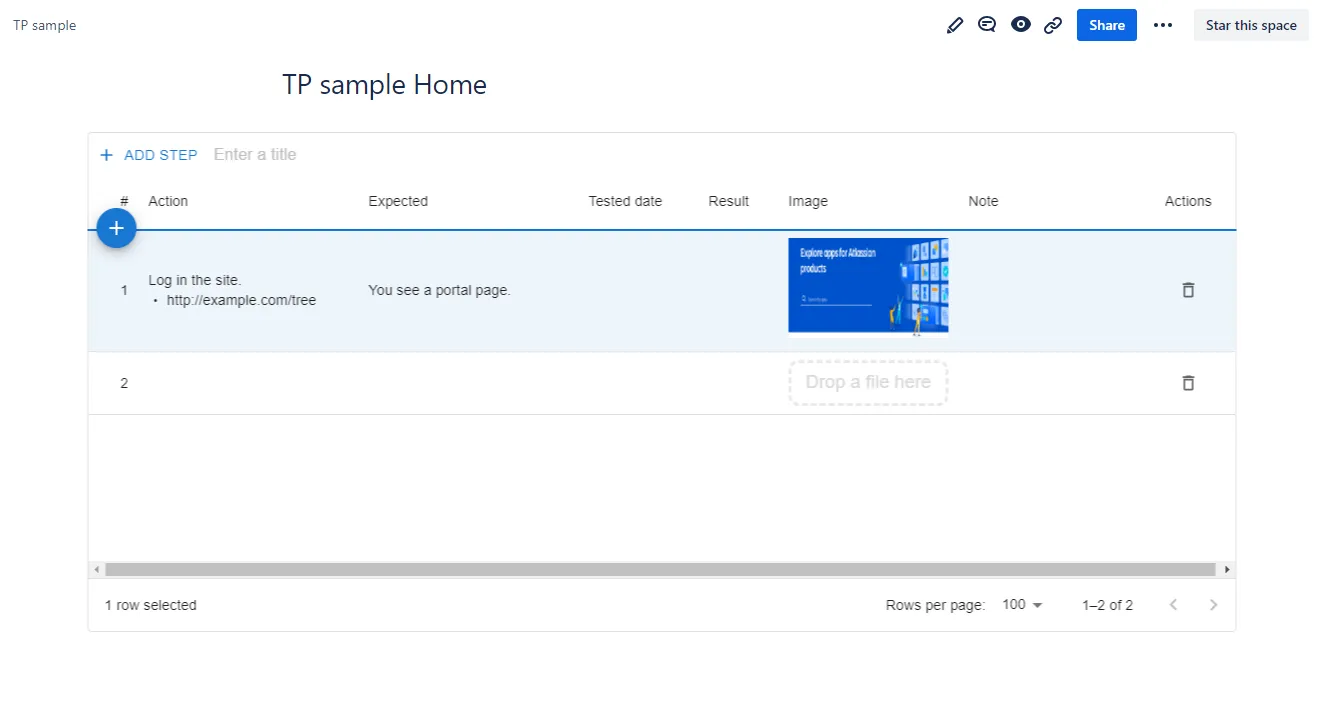
For inserting, reordering, and deleting steps, see Editing test steps.
Execute a test
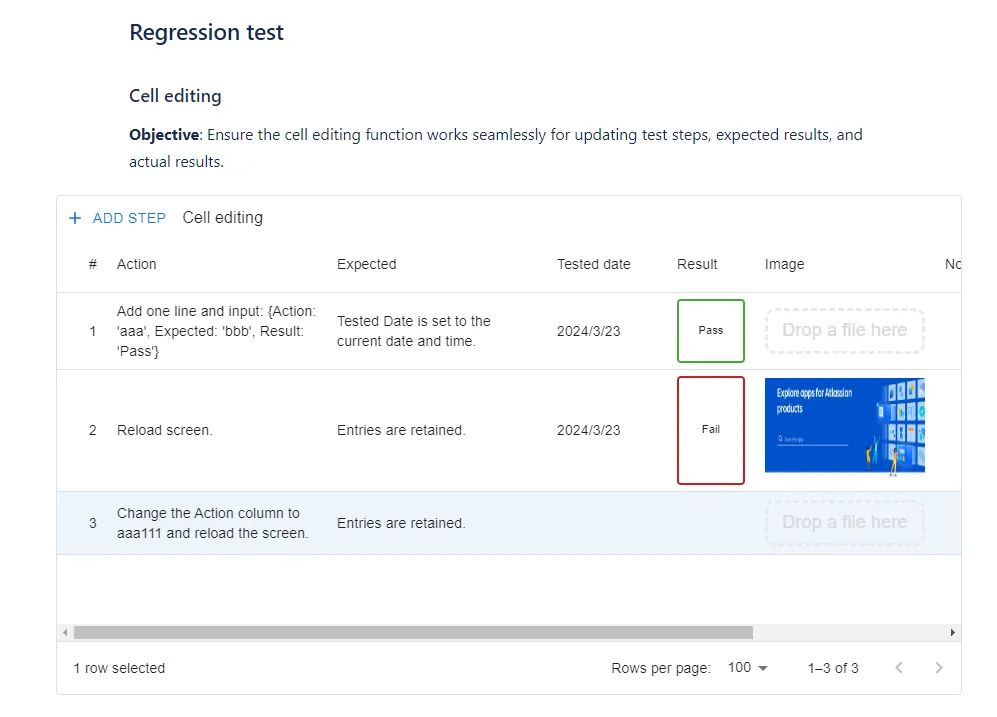
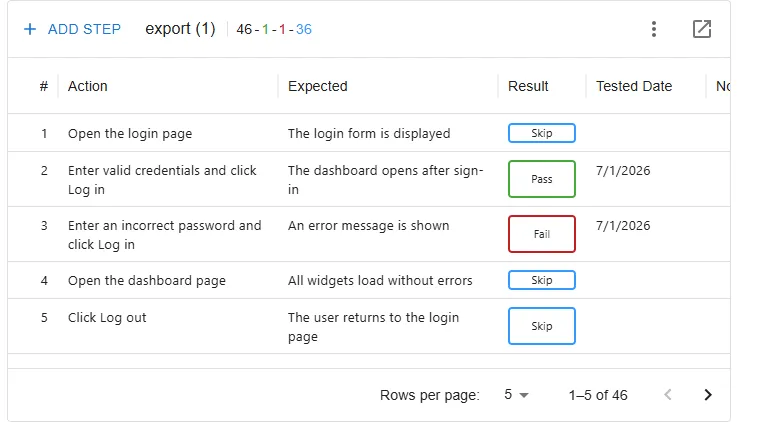
Section titled “Execute a test”- For each step, run the test and record the outcome in the Result column. The Result column offers Pass, Fail, Skip, and Clear (no result). Each value is color-coded (Pass in green, Fail in red, Skip in blue) so you can see progress at a glance.
- Editing the Result column records the current date and time in the Tested Date column.
- To attach an image or video as evidence, drag and drop a file into the Image column. Click a thumbnail to open a preview; the attachment can be deleted from the … menu in the preview. For clipboard paste, video playback, downloading, and image annotation, see Attachments and image editing.
Check progress across pages
Section titled “Check progress across pages”Open Apps → Test Perspective in the space sidebar to see all test sheets and test cases in the space, with their progress. See Test Sheet List & Test Case List.
How to re-test
Section titled “How to re-test”To run the same tests again, copy the test sheet from the Test Sheet list. The copy keeps the test case definitions (such as Action and Expected) and clears the execution results.
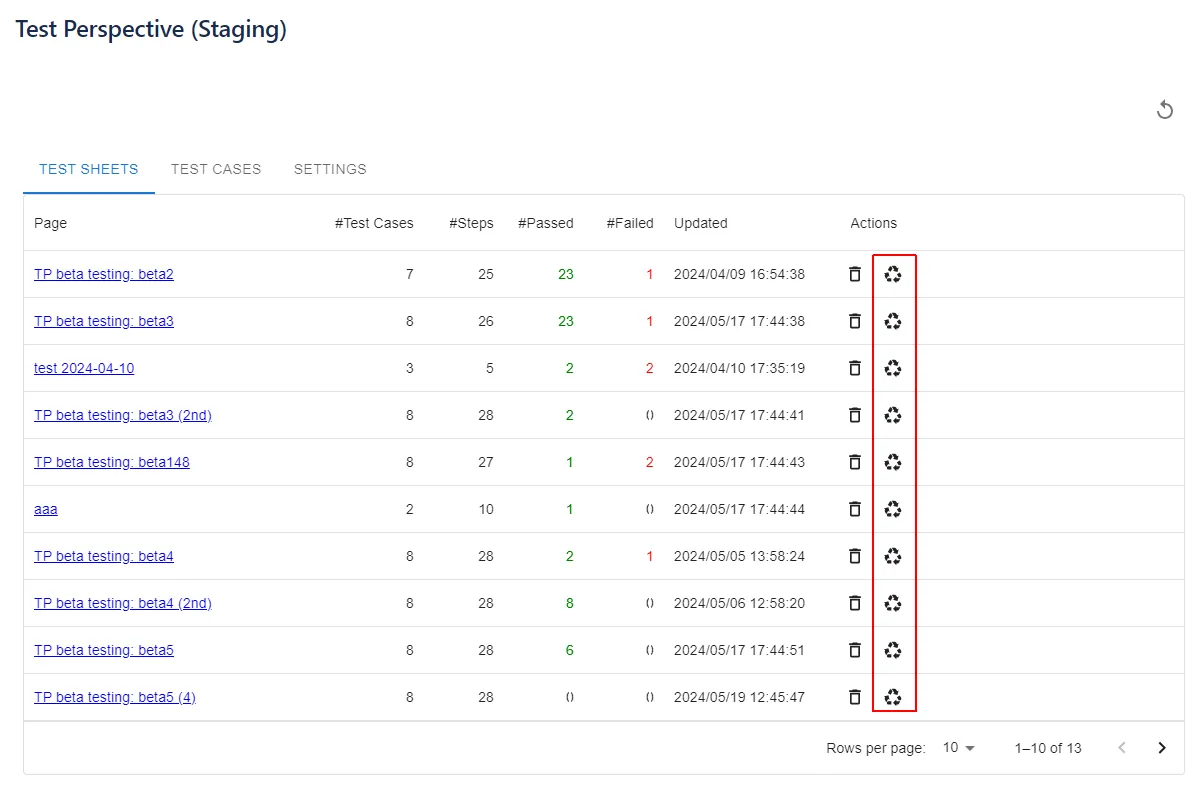
See How to re-test for all copy options and for clearing results in place.