How to re-test
Method1: How to Copy a Page Including Test Cases
Section titled “Method1: How to Copy a Page Including Test Cases”Using Confluence’s standard “Copy” action does not reliably carry over test cases. To ensure all test cases required for re-testing are included, please use one of the following methods:
1. Copy from the Test Sheet List
Section titled “1. Copy from the Test Sheet List”-
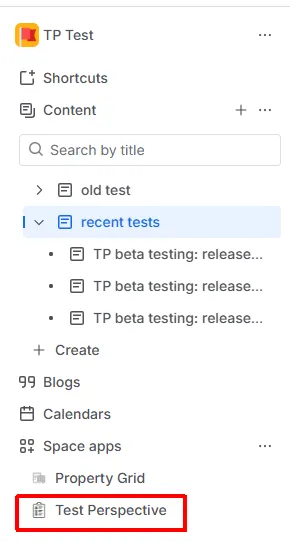
Open the test sheet list page.
-
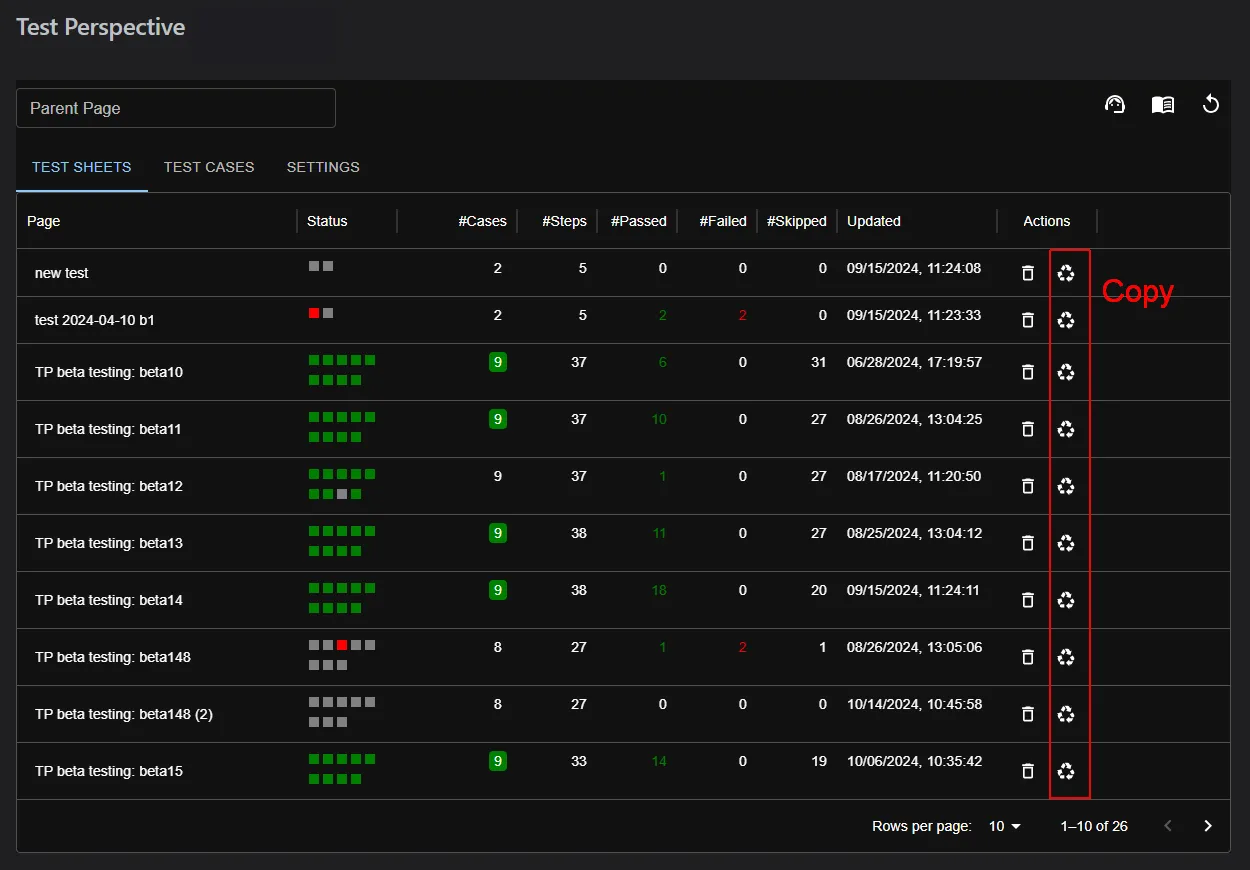
Click the “Copy” button for the test sheet you want to copy.
- A new page will be created with all test cases included.
2. Use the Page Action Menu
Section titled “2. Use the Page Action Menu”-
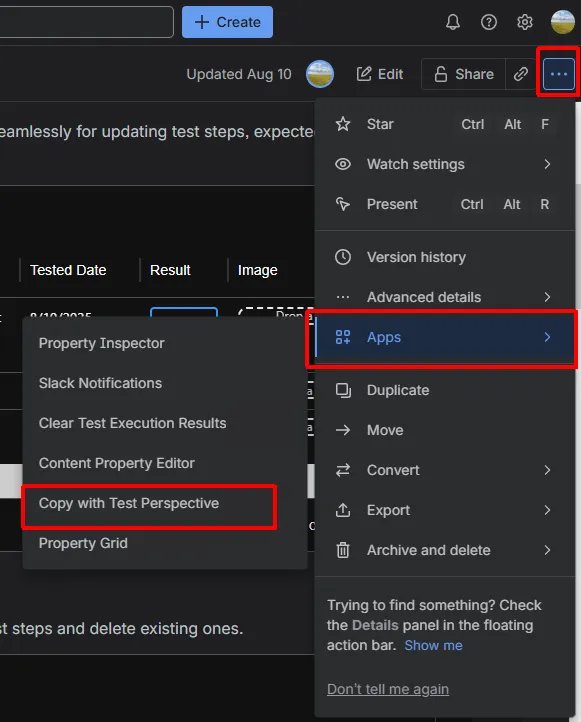
Open the page you want to copy, and click the “…” (Actions) menu in the top-right corner.
-
Select “Copy with Test Perspective.”
- A new page will be created with all existing test cases.
By using these methods, you can ensure the full test case table and its contents are duplicated, allowing you to continue using the same testing information on the new page.
Method2: Re-testing by Clearing Test Execution Results
Section titled “Method2: Re-testing by Clearing Test Execution Results”Overview
If previous test history is no longer needed, you can clear the test result columns from the test macros on a page. This allows you to reuse the test page for subsequent tests.
Procedure
- Open the page that contains the test macros.
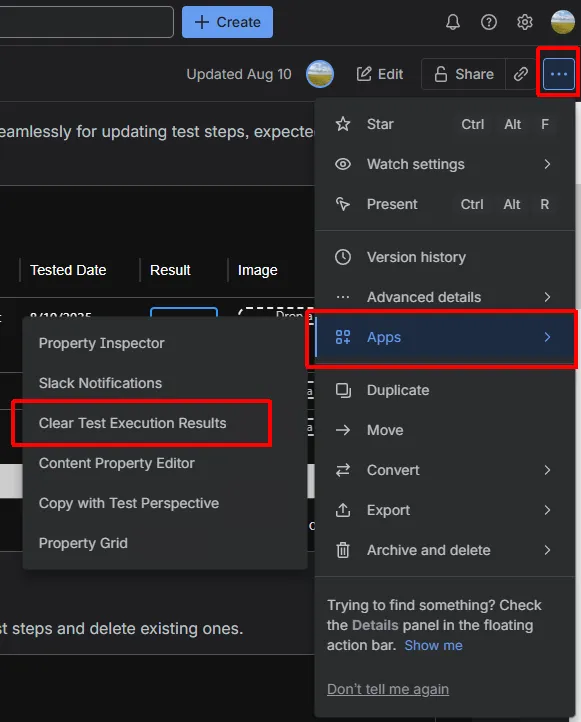
- From the page’s action menu, select “Clear Test Execution Results”.
- The test result columns will be cleared automatically.