Getting started
Create Test Case
Section titled “Create Test Case”-
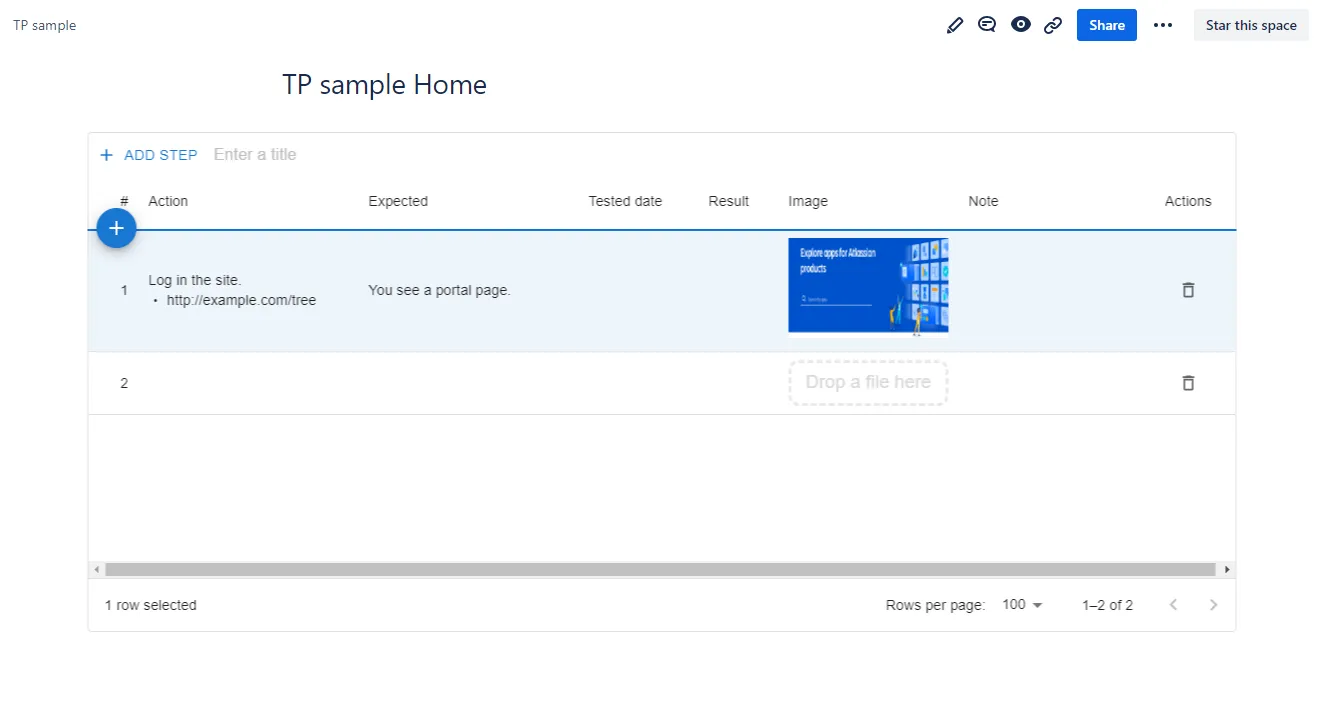
In a page edit mode, place “Test Case and Execution Macro” anywhere on the page.
- Type ‘/test’ for a quick selection
-
Press the “+Add Step” button within the test macro to add a test step.
-
The Action column should contain the test operation and the Expected column should contain the expectation.
Execute test
Section titled “Execute test”-
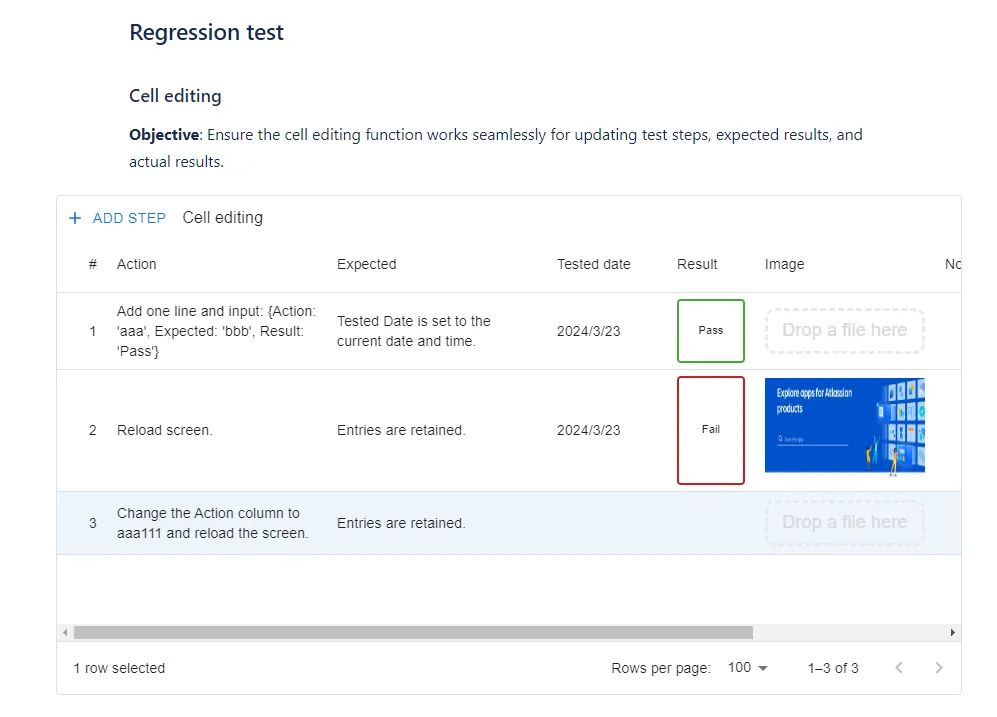
For each step, run the test and record the results in the Result column
-
Editing the Result column will record the current date and time in the Tested date column
-
To attach an image or video, drag and drop a file into the Image column.
- Click on a thumbnail to open a preview. You can delete the attached image from the action menu in the top right-hand corner.
How to re-test
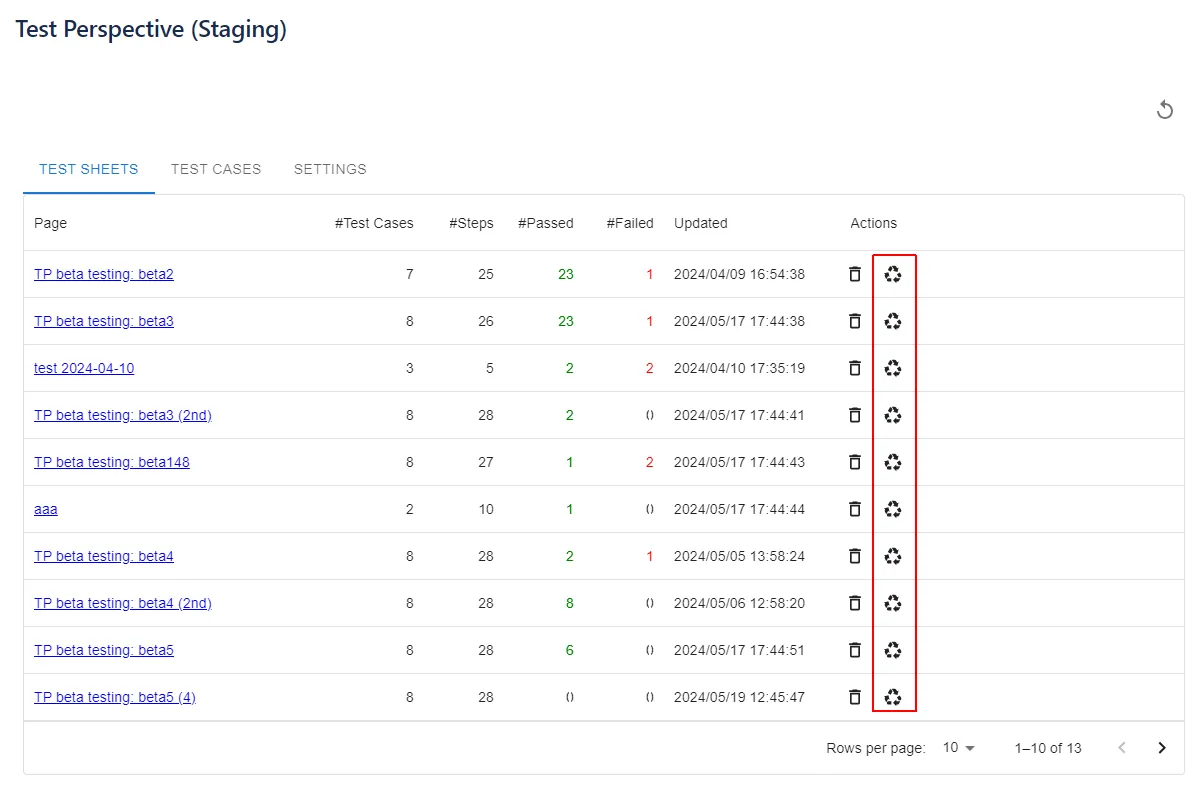
Section titled “How to re-test”You can copy[^*1] a test sheet (Page) from the Test Sheet list for re-testing, with the fields related to the test run cleared.