How to use
It is straightforward. Put Calc Macro Pro (or Calc Macro Classic) in a cell of a standard Confluence table, then give it a formula. The steps below apply to both macros.
-
Place the cursor in a table cell and insert the macro, for example by typing
/calc.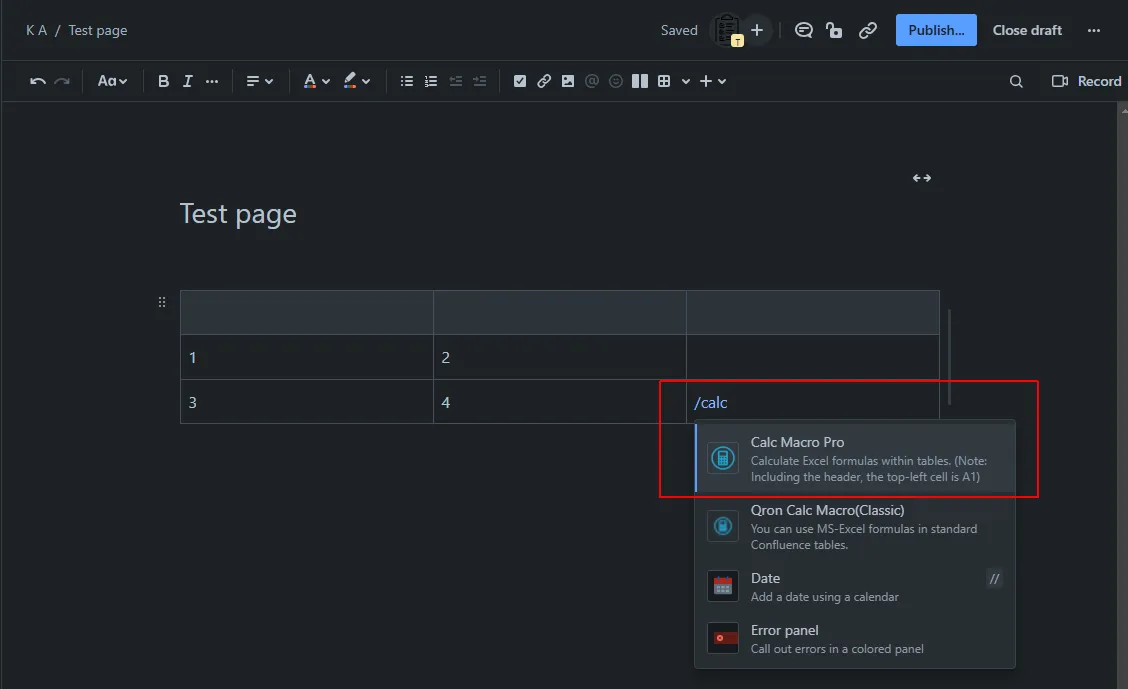
-
The macro is added right away and shows No formula. The settings dialog does not open when you insert the macro.
-
Select the macro and choose Edit (the pencil icon). The Formula Settings dialog opens and shows your table, with the macro’s own cell selected.
-
Type the formula in that cell, for example
=sum(b2:e2), and choose OK. Other formulas in the table are shown as chips, so you can see what each cell does while you write.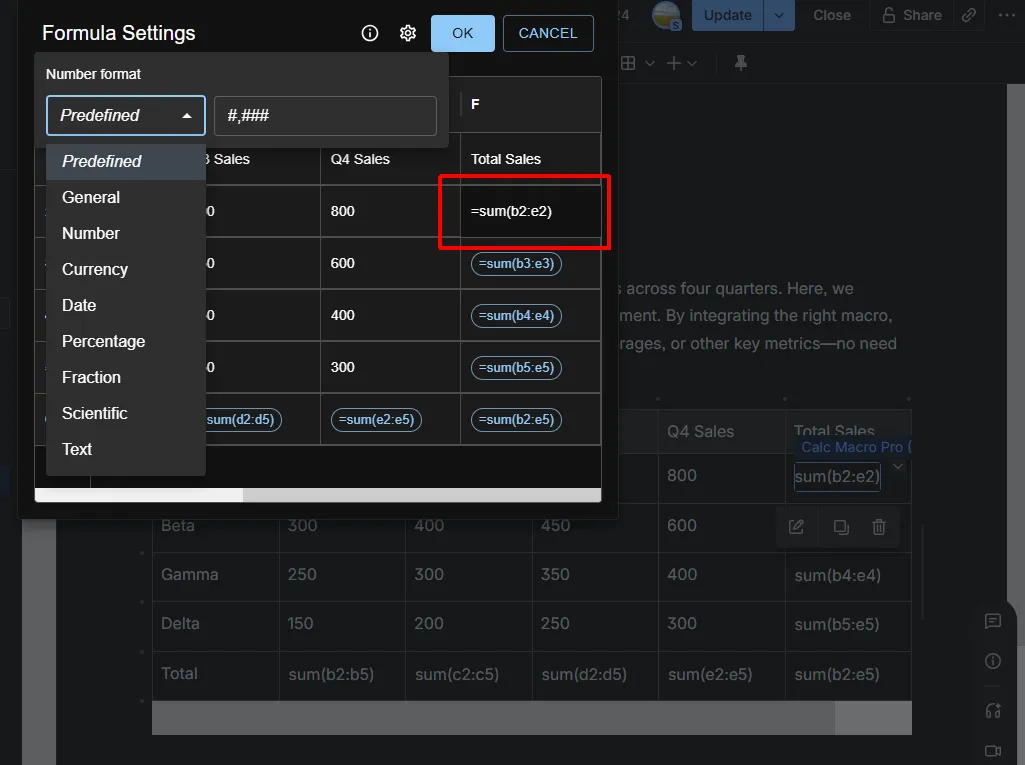
You can also set the number format, text alignment, and text style.
The result appears in the cell. While you edit the page, and in live docs, the result updates as soon as you change a referenced cell or the formula.
Given a formula “sum(a2:b3)” will be displayed like the following.

For worked examples, see Examples.