Search and Replace on This Page
Search and Replace (This Page)
Section titled “Search and Replace (This Page)”This mode lets you search and replace text only on the current page.
It is the recommended way to start if you are using the app for the first time.
-
Open the page you want to edit.
-
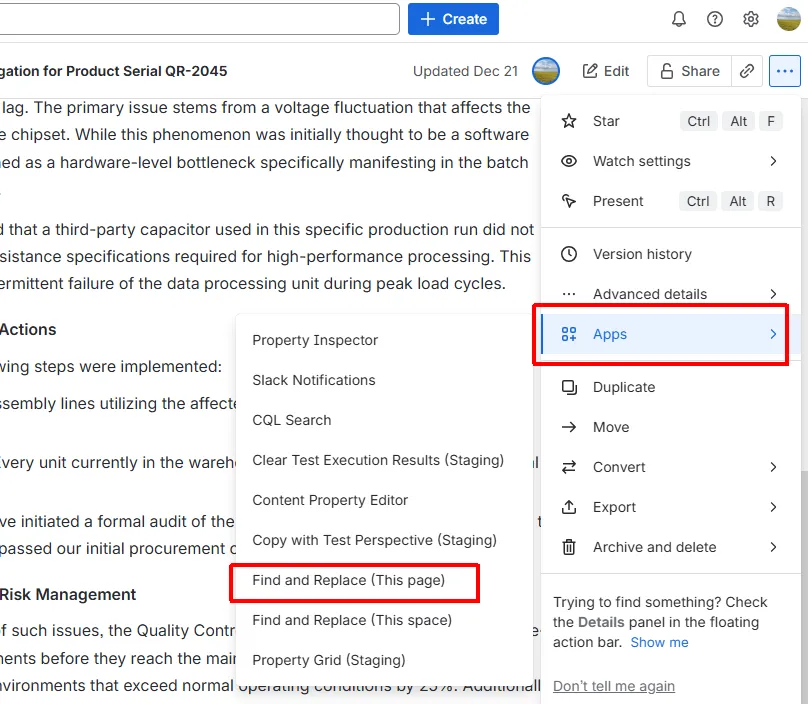
From the page menu, select Find and Replace (This page).
-
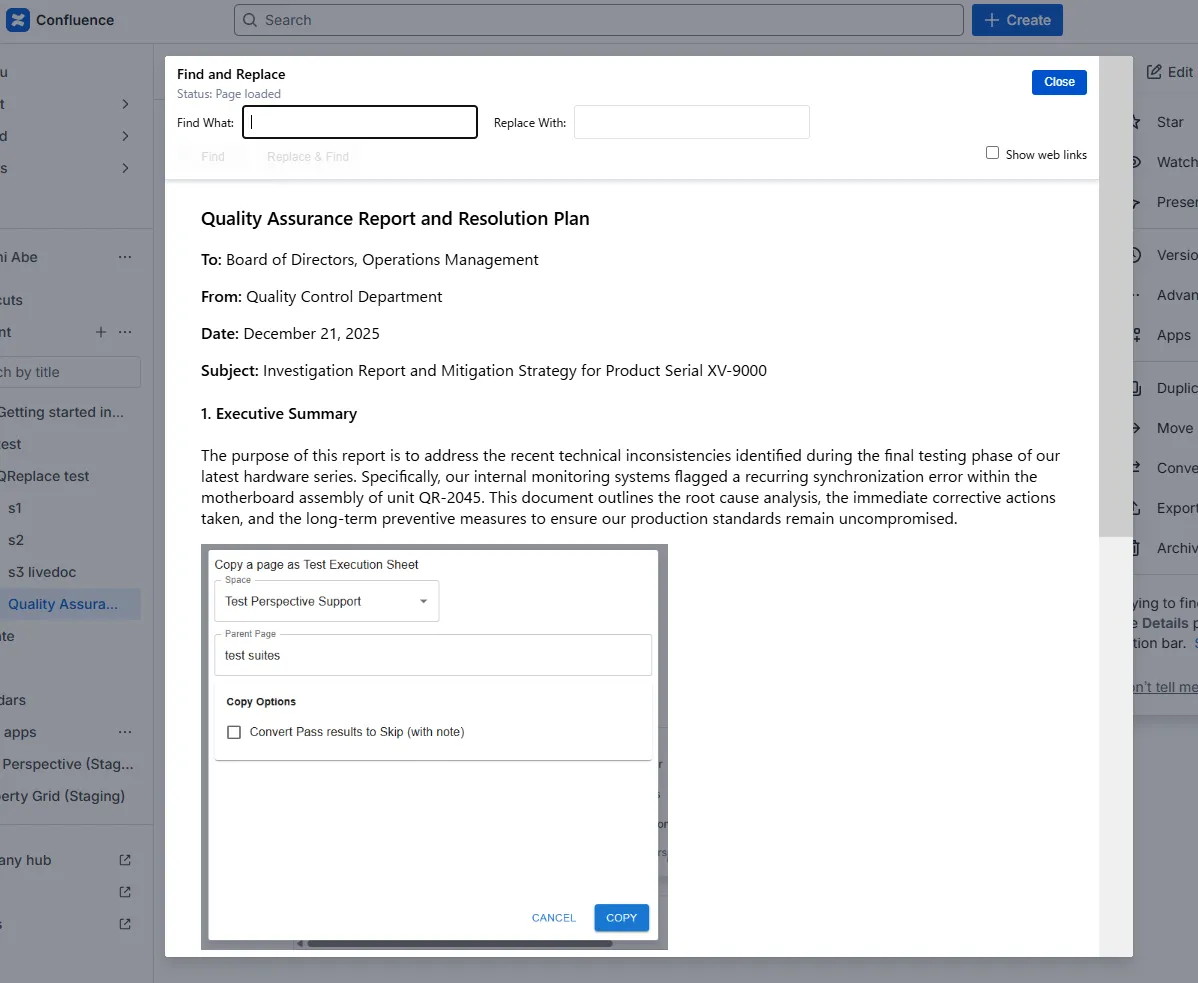
The search and replace panel opens.
- Enter the text to search for in Find What
- Enter the replacement text in Replace With
-
Click Find.
- The first matching text on the page is highlighted.
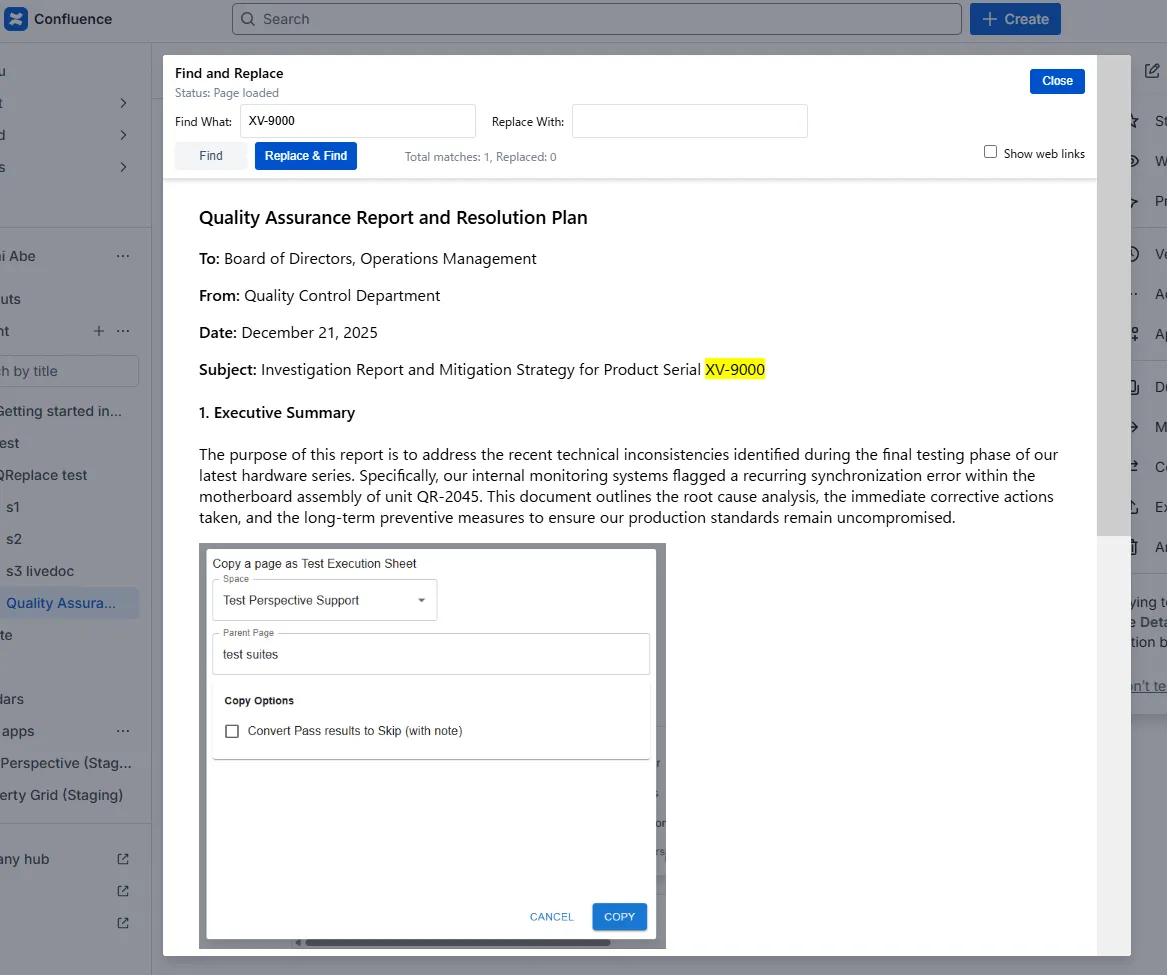
- The first matching text on the page is highlighted.
-
Click Replace & Find.
- The highlighted text is replaced
- The next matching text is highlighted automatically
Note:
If you click Find instead, the replacement is skipped and the next match is highlighted. -
Repeat the process until no more matches are found.
-
Click Close to finish.
- Changes are saved automatically.