Search and Replace Across a Space
Search and Replace (This Space)
Section titled “Search and Replace (This Space)”This mode allows you to search and replace text across all pages in the current space, one page at a time.
Each replacement is still handled interactively, so you can review changes page by page.
-
Open any page in the target space.
-
From the page menu, select Find and Replace (This space).
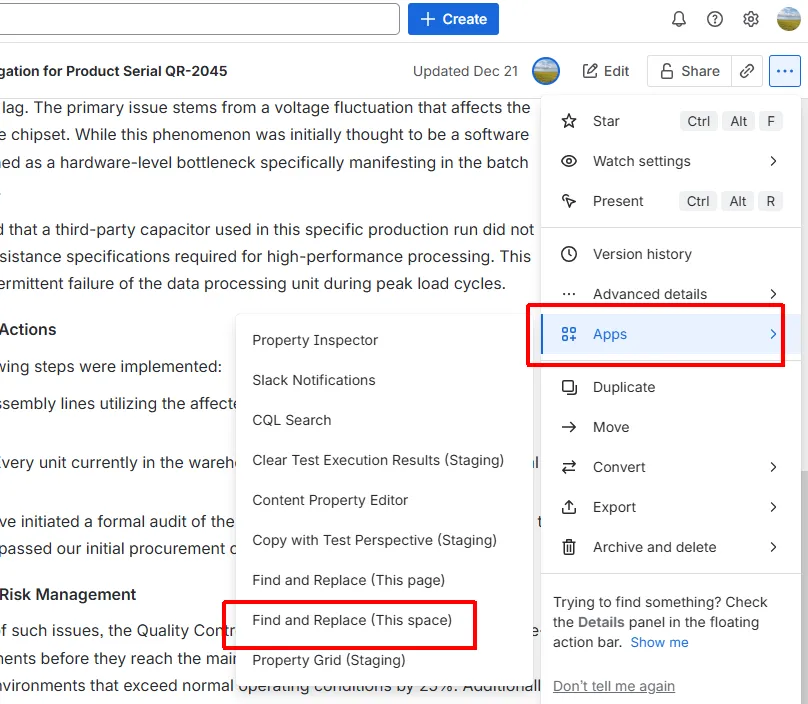
-
The search and replace panel opens.
- Enter the text to search for in Find What
- Enter the replacement text in Replace With
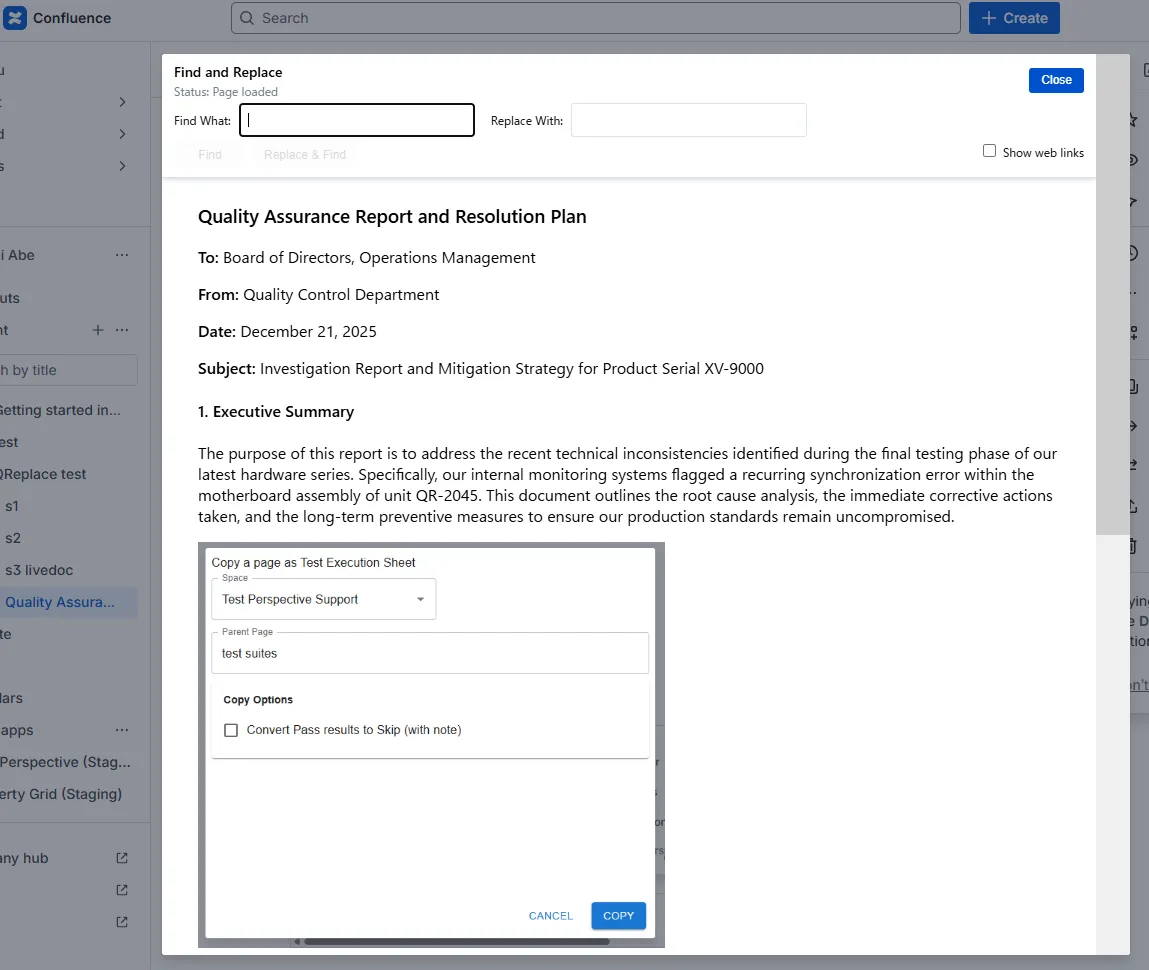
-
Click Find.
- The first matching text in the first page is highlighted.
-
Click Replace & Find.
- The highlighted text is replaced
- The next match is highlighted
Note:
Clicking Find skips the replacement and moves to the next match. -
When no more matches exist on the current page, the next page containing the search text opens automatically.
-
Continue until all matching pages are processed.
-
Click Close to finish.
- All changes are saved automatically.